Your data comes with you: two ways of migrating it
You import it yourself with the included tools, or you entrust us with the migration, free of charge within the scope stated.
Method
The two ways of migrating your data
- Included
You import it yourself
Built-in migration tool: file templates, column mapping, a test run that writes nothing and an error report.
- You export your files from your previous tool and start from the CSV templates provided
- You map the columns, then run the test: nothing is written, and each row to correct is flagged
- You launch the import, then check the data in each shop
- Free of charge
We migrate your data
Once per account: items and stock, customers, suppliers and the sales history of the last three years, from CSV or Excel exports of your previous software, within ten working days of receipt of the complete files. Outside this scope: on quote.
- You send us the exports from your previous software
- We clean them and load them for you
- You check the result before switching over
On screen
Migrating your data, on the actual screen
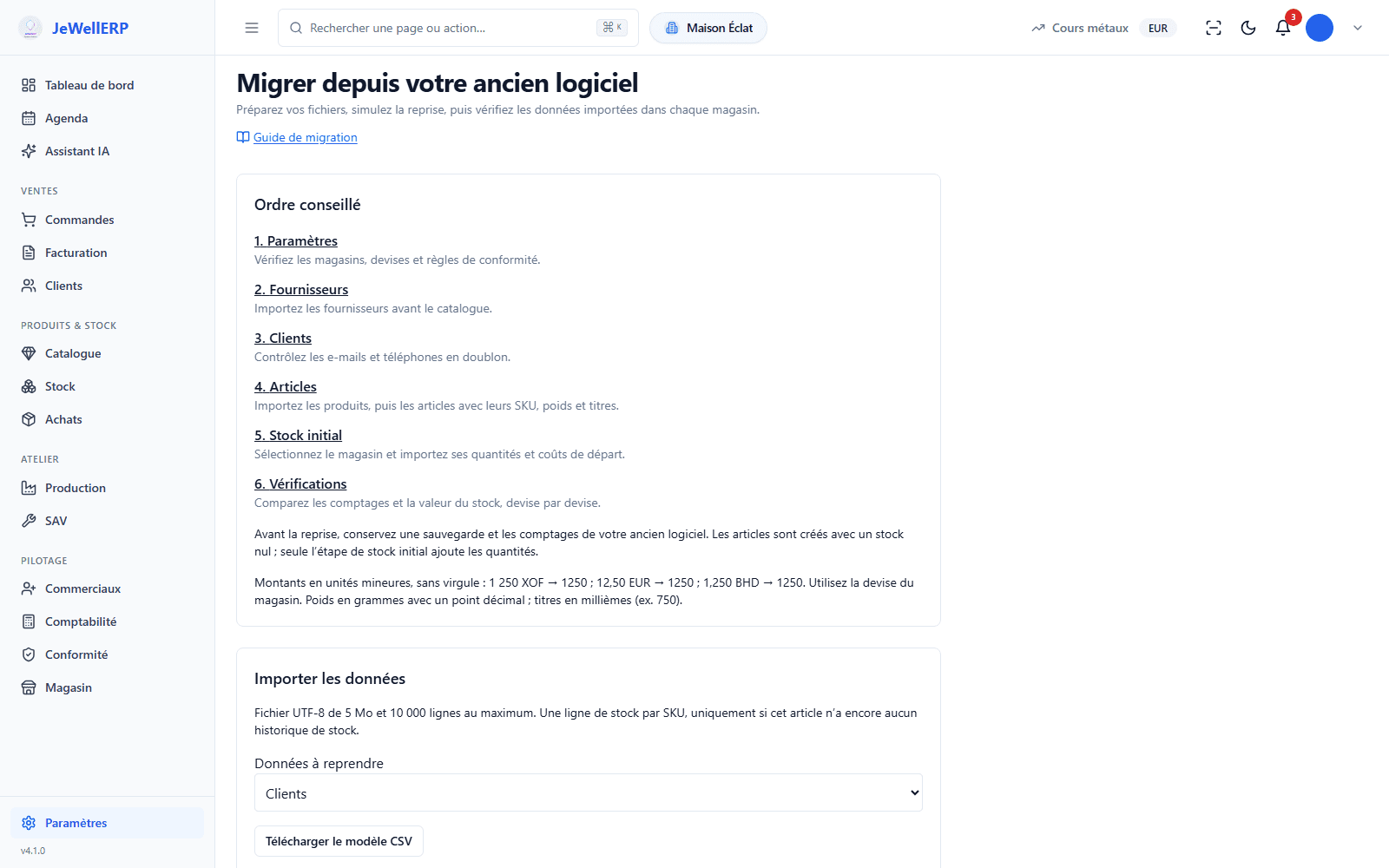
The “Migrer depuis votre ancien logiciel” screen (Migrate from your old software) gives the recommended order. For each file, you map its columns to the software’s fields, run the test, then read row by row what is valid and what needs correcting, before importing.
Limits
Four precautions before you begin
- Export everything, and keep a copyTake out of your previous tool everything it lets you export, before your contract ends. Keep these files as they are.
- Clean up before importingDuplicates, inactive records, abandoned references: what does not come in will not need correcting.
- Run the test firstThe test run writes nothing: it flags each row to correct and produces a report to download.
- Set a switch-over dateChoose a quiet day, and do your stocktake on that date: the stock and the register will start from the same point.
Questions
Your questions
The import tools are included in every plan. Migration by our team is free of charge, once per account: items and stock, customers, suppliers and the sales history of the last three years, from CSV or Excel exports. Outside this scope: on quote.
CSV files, exported from your previous tool or saved from your spreadsheet. The migration screen provides a template for each file.
We look at them with you during the demo, to tell you what can be migrated.
The test run writes nothing: you correct your file before importing. An interrupted import resumes where it stopped.
A record that already exists is not overwritten: duplicates are flagged.
Yes. Throughout the contract, you can export your data from the software.
At the end of the contract, we keep it available to you, in a common format, for thirty days. This is set out in our terms of sale.
See JewellERP on the cases of your jewellery shop
A no-obligation demo on what you sell, make or repair. Or a 14-day free trial: we set up your trial instance.